
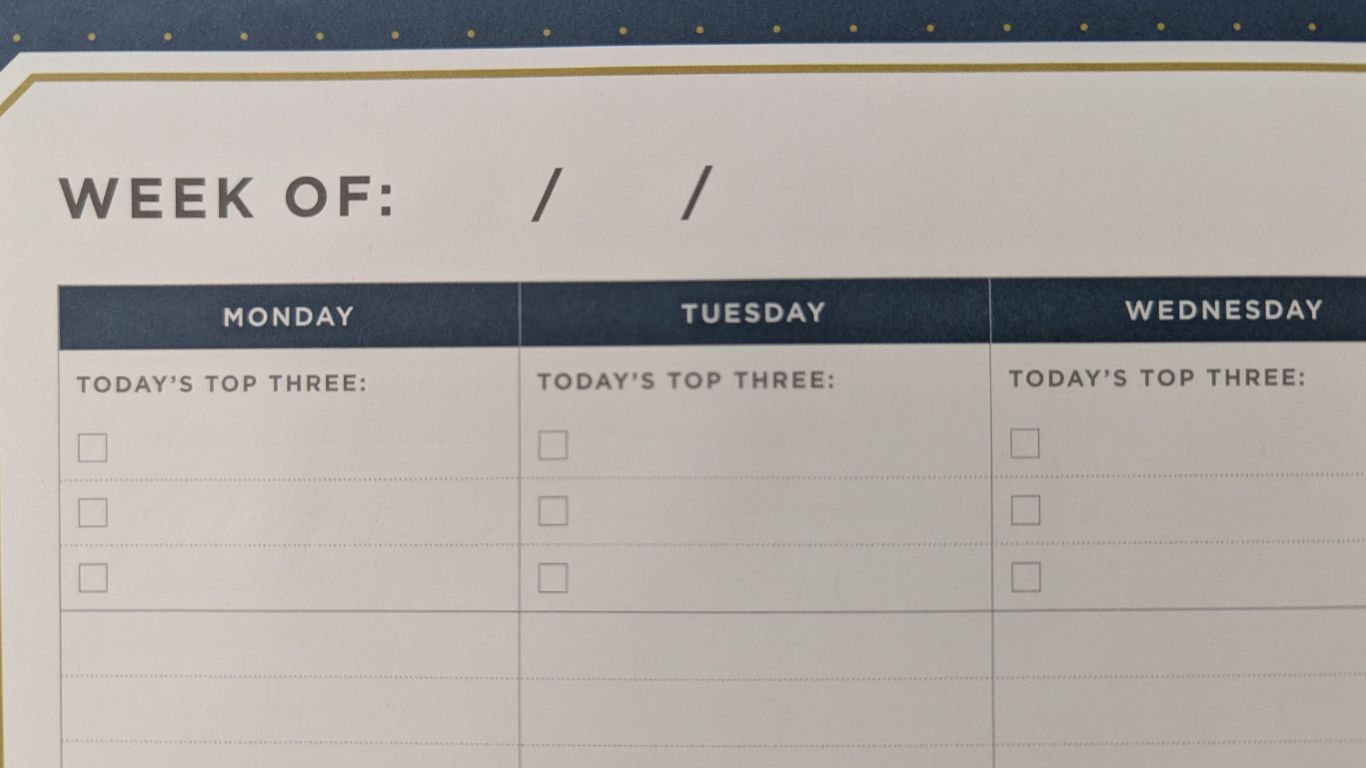
When you work in content marketing, one question often pops up: What do you do for a content calendar?
Not surprisingly, my answer wasn’t ideal during the first few years of working professionally in this business. When I first started, I didn’t have much of a calendar at all. Either my social posts were done on the fly or I kept track of them in the social media scheduling systems I used. I kept it organized with a system in my head. This worked for me because I thrive off of an organizational system.
This was over 10 years ago and worked back then, but now, the process is much more sophiticated. Social media is an integral part of a marketing plan along with blogs, web pages, emails, virtual events, and more. That means a content calendar has to integrate all of these aspects to keep everything organized and in harmony.
If you’ve never created your own content calendar before and are completely lost on how to get started, this blog is for you.
Content Calendar Basics
Before creating a content calendar, there are two questions you have to consider:
- Where do I want my content calendar to live?
- What does my content calendar need to include?
Every company has different content needs, so the answers to these questions can vary greatly. Determining the right system for your business will make it easy to keep all marketing efforts organized and synced.
Where it Will Live
Businesses should understand is that not all content calendars have to be in a certain place. These three options are what I’ve used over the years.
- Project Management System: This type of content calendar is good for large teams managing a large amount of content. They provide multiple viewing options, ways to assign tasks and check progress, and house all of the aspects of the content in one place. For large teams with lots of content, it makes it much easier to go back and forth on edits and approvals. Plus, plenty of these platforms have a multiple calendar views to make it easy for anyone to read.
- Document (Microsoft Word, Google Docs, etc.): Documents are good for individuals who want a basic content calendar system for social posts only. I use content calendar documents solely to format a simple social media calendar within the body of client emails. I’ll include post dates and times, copy, and any images, videos, or links that go with them. It’s much quicker and simpler view.
- Spreadsheet (Microsoft Excel, Google Sheets, etc.): Spreadsheets are my preferred content calendar method. They work great to keep all kinds of content organized in multiple spreadsheets and can be easily used by one or more people. You can also create multiple viewing options. I go back and forth between Excel and Sheets, but I prefer sheets when I know I am working with multiple people. If you’re only using it yourself or with one other person, an Excel works fine.
Once you know where you want your content calendar to live, then you can move on to what needs to be in it.
What it Needs
A content calendar should be organized and robust to include everything you could possibly need without needing to completely restructure it. I have tweaked mine enough over the years that these are the ideal sections to have.
- Content (blogs, podcasts, videos, emails, virtual events, whitepapers, case studies, etc.)
- Publish date
- Publish time
- Content title
- Content link (if applicable)
- Content media (documents, images, video)
- Content type
- Social Media
- Publish date
- Publish time
- Post copy
- Post media (links, images, video, gifs)
- Post link
- Social platform
When you have a basic idea of what your content calendar will look like, you can start to get an understanding of what works for you and what doesn’t. Over time, that leaves room for improvement.
Content Calendar Optimizations
It is possible to make more improvements to your content calendar to make it better. These optimizations apply to spreadsheets, but could work for documents or project management systems.
Add More Organization
I have multiple spreadsheet views for my content calendar. The first tab is the main calendar for the year and each section of that spreadsheet is divided by quarters and months. This allows me to have multiple viewpoints within one spreadsheet if I need it.
I have other tabs that show a calendar view so that I can look at it from that perspective. Admittedly, I don’t update these sections as much as I should, but they are great for seeing it from another perspective.
For the content itself, try adding a content category that can be used to measure company goals. For instance, this blog has categories for different types of blog topics that I want to focus on and I use data tools within excel to see how often I do blogs on those topics. It’s an easy way to measure success, especially if you’re trying to prove your marketing efforts to leadership.
Share with Your Team
One other thing I like to do is share my content calendar regularly with leadership teams through an email I send out on a regular basis. It’s a great way to bring awareness to marketing initiatives, get more employees to share your content on social media, improve your social metrics, and get content ideas from leadership.
Include Future Content Ideas
Ideas should never go to waste, especially for future content. Include a table below your content calendar that serves as a fodder for future content ideas. You’ll thank yourself in the future when you’re completely stumped on what do post or create and need some inspiration.
As a content marketer and dork, I don’t know what I would do without my content calendar. It serves me well and it’s taken years to create one I love, but I wouldn’t be surprised at all if I made changes to it again. But if you’re new to all of this, I hope this blog has given you the best start possible to create your own.
 AFJ Digital
Leave a Reply